LED display video formats should be approved against the exact media player, software version, layout and display signal path—not the filename extension alone. Specify the container, video and audio codecs, resolution, frame rate, encoding profile and color settings, then test the exported file on the intended system. An MP4 that plays on a laptop is not proof that it will play correctly on an installed LED wall.
For buyers and integrators, the goal is an agreed delivery preset and a repeatable approval process. This guide explains what to request from the content team, which compatibility boundaries to check, and how to accept playback before releasing a campaign. It does not prescribe one universal export setting or claim tested performance for any KSS installation.
What does “supported video format” actually mean?
A container is the file structure that holds video, audio and related information. A codec describes how a stream is encoded. MP4 is a container; H.264/AVC and H.265/HEVC are video codecs. Two files with the same extension can therefore have different playback requirements. The extension is a useful starting point, not a complete specification.
Approval also depends on the codec profile and level, encoded dimensions, frame rate, bit depth and other constraints. Do not reduce a supplier’s compatibility statement to “supports MP4” or “supports 4K.” Ask which combinations the selected player supports in the actual presentation mode, including portrait rotation, multiple video zones or synchronized playback when required.
As a vendor-specific example, BrightSign’s Video Formats & Codecs documentation separates requirements by player family and includes container, codec, resolution, profile, bit-depth and frame-rate information. It also flags model-specific portrait limitations. Use the current matrix for the proposed device; these capabilities should not be transferred to another manufacturer’s player or to every product in one brand’s range.
Keep the publishing platform and playback device distinct. A CMS may accept an upload without establishing that every assigned player can decode it. During LED display CMS selection, ask whether files are passed through unchanged or transcoded, and which resulting configuration is covered by the supplier’s support.
Read the exported file before choosing a preset
Request the actual delivery file, not just the editor’s export-preset name. Presets can change between software versions, and a previous operator may have modified individual fields. Keep the export application and version in the handover record, but inspect the resulting media separately.
MediaInfo’s official overview lists technical information it can report, including container details, video codec, aspect ratio, frame rate, bitrate, color space, chroma subsampling, bit depth and audio properties. A local file-information report is useful evidence for the content handover. It identifies file properties; it is not a certification of player compatibility or visual quality.
Create a short delivery sheet for each approved preset. Use actual values where the tool reports them, and mark unavailable fields rather than guessing. Compare the report with the selected player’s documentation and any application-specific requirements supplied by the integrator.
On smaller screens, swipe horizontally to view all columns.
| Delivery field | Record from the file or project | Approval question |
|---|---|---|
| Container and video codec | Actual container, codec, profile and level | Is this combination supported in the intended playback mode? |
| Encoded dimensions | Width and height in pixels | Does it fit the agreed player limit and content region? |
| Timing | Frame rate, scan type and duration | Does it match the planned output and campaign behavior? |
| Bitrate | Mode and reported average; peak information if available | Has the workload been accepted on this configuration? |
| Color | Bit depth, color metadata and chroma subsampling | Is the intended SDR or HDR workflow defined end to end? |
| Audio | Codec, channels and sample rate, or no audio track | Is the selected routing and loop behavior supported? |
| Identity | Filename, revision, file size and checksum if used | Is the approved file the one actually delivered? |
The delivery sheet should be a practical agreement, not a catalogue of every possible encoding option. Select a supported baseline for each device group, identify exceptions, and save the approved sample alongside its report. If the fleet contains different players, one common preset must be proven on all affected configurations before it becomes the standard.
Separate the content canvas from the output signal
The LED wall’s physical pixel canvas, the player’s output signal and the encoded file dimensions are different things. A custom-shaped display may use a region inside a larger output raster. Alternatively, several outputs may feed different parts of a wall. Ask the integrator to provide the mapping that applies to this installation.
For a simple illustration, a hypothetical 2,400 × 800-pixel wall has a 3:1 canvas. A 1,920 × 1,080 file has a 16:9 aspect ratio. Filling the wall with that file requires a decision about scaling, cropping, padding or composition; the container name cannot settle it. These numbers describe an example, not a recommended export size or a supported player mode.
Record where scaling takes place and who owns it. A file may be positioned by the CMS layout, resized by the player and mapped again by the processor. Avoid changing all three stages while diagnosing a framing problem. Establish the intended output mode and active content region, then check the file against that arrangement.
Use visible edge markers and shapes in the commissioning content to find unintended cropping or distortion. Then verify the final campaign itself. A test pattern that fills the canvas does not establish that small text or a call to action is readable; use the separate content readability approval guide for that decision.
Check color and grayscale on the installed screen
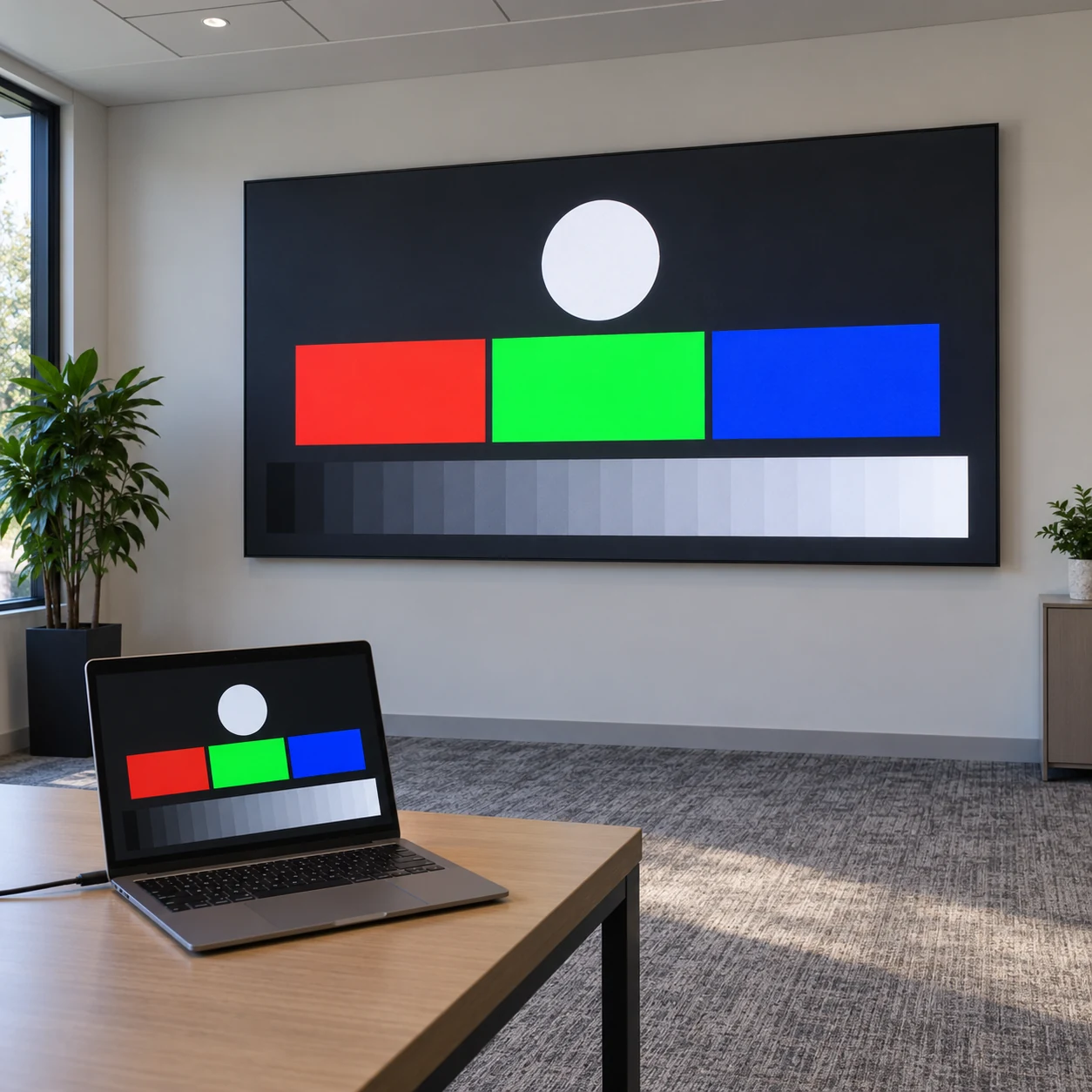
Specify whether the delivery is intended for SDR or HDR, and ask the integrator to document the relevant player output, processor input and display configuration. Do not approve HDR solely because it appears in a player brochure. Equally, do not assume that every unexpected color difference is an LED module fault.
Keep a simple grayscale ramp, neutral patches and representative brand colors in the test pack. View them through the agreed playback path under the installation’s normal operating conditions. Look for unexpected clipping, loss of shadow detail, altered neutral tones and visible banding, then compare with the intended content appearance.
A laptop preview is helpful for finding obvious file mistakes, but it is not automatically a calibrated reference. If the project requires a defined color tolerance, agree the measurement method, reference, environment and responsible specialist before acceptance. A photograph of the screen is useful for documenting a symptom, not for proving precise color accuracy.
When a mismatch appears, preserve the file and configuration record before making changes. Check the media’s color information and the input/output settings with the integrator, changing one controlled variable at a time. Do not silently remove metadata, switch color modes or re-export several generations of files without recording which version was tested.
Prove motion, looping and the complete workload
Choose frame rate and bitrate within the documented limits for the selected player and layout. The largest supported number is not automatically the best operational target. Request acceptance with representative detailed scenes, motion and transitions, not only a short low-complexity demonstration clip.
BrightSign’s Optimize Video Quality guidance discusses unnecessary scaling, source/output timing, application-specific looping formats and performance effects from additional tasks. Its recommendations are conditional on the hardware and use case. This is why an ordinary single-file playback test should not be treated as proof of seamless loops, rotated layouts or synchronized screens.
Define the expected loop boundary in observable terms. Does the campaign require an uninterrupted visual join, a deliberate transition or an allowed blank interval? If audio is included, specify what should happen at the join and confirm the supported encoding and routing for that function. “Seamless” needs an acceptance description, not just a sales label.
Test with the other scheduled activity present: graphics, additional video regions and ordinary content updates where relevant. Distinguish decoding performance from file delivery and storage problems. The player storage planning checklist helps confirm that the approved file and next campaign can actually reside on the device.
Turn playback approval into a repeatable release gate
Start with an agreed test pack and a known configuration. Include the normal campaign, an appropriately demanding representative clip, the required orientation and the actual loop or transition behavior. Choose the observation period for the project’s operating cycle; a few seconds of playback cannot establish every campaign boundary or sustained operating condition.
- Record the player model, software version, CMS layout, output mode and processor configuration used for approval.
- Inspect the actual exported files and match their properties to the delivery sheet.
- Publish through the intended workflow, confirming whether a transformation occurred before playback.
- Verify framing, motion, grayscale, colors and any audio on the physical screen.
- Observe the relevant loop boundaries and transitions; test simultaneous regions or synchronization if included in scope.
- Check a normal campaign replacement and an approved restart, recording the expected recovery behavior.
- Keep the approved files, configuration record, observations and unresolved exceptions together.
Assign a pass, fail or conditional approval to each requirement. Record what happened rather than writing only “video OK.” For example, note whether an edge marker was visible, a shape kept its proportions or a loop met the agreed boundary behavior. These are test-record examples, not reports of completed KSS tests.
For a larger deployment, add the tested delivery preset to the multi-site pilot approval record. A change of player model, software, encoding preset or layout should trigger the relevant recheck. Approval belongs to the tested combination, not to every future file bearing the same extension.
Decide who fixes a rejected delivery
Make the responsibility split explicit before purchase. The content producer owns the source and export process. The CMS provider explains upload validation and any transformation. The integrator confirms the configured playback path and records on-screen acceptance. The buyer approves the commercial content and the project-specific quality requirements. Adjust this split to the actual contracts rather than assuming one supplier includes everything.
Ask quotations to identify whether preset preparation, sample-file testing, re-encoding, color commissioning and campaign support are included. Define how exceptions are handled: who receives the rejected file, what evidence accompanies it, and who authorizes a revised delivery. Avoid promising a fixed turnaround that the parties have not agreed.
Preserve a known approved file for controlled comparison. If that file still plays correctly while a new delivery fails, investigate the new file and workflow before replacing hardware. If both fail, broaden the diagnosis using the configuration and error evidence. Do not overwrite the only approved campaign during troubleshooting.
Questions buyers ask about video delivery
Can changing a file extension make it compatible?
Renaming a file does not change its encoded video or audio streams. A genuine conversion may be necessary, but the required output must first be defined for the selected player and application. Inspect and test the converted result rather than assuming the new filename proves compatibility.
Should every campaign be converted to H.265?
No. H.265 is an option only where the relevant hardware, software and playback function support the proposed encode. Decide between supported presets using the actual content, file size, workflow and demonstrated playback quality. Do not change a fleet-wide format solely because a different codec is available.
Does a successful CMS preview count as approval?
Not by itself. A preview may use a different decoder, output path or transformed file from the installed player. It is useful for editorial checks, but final technical acceptance should cover the delivery that reaches the physical display in the intended configuration.
Send a complete video-format brief
LED display video formats become manageable when the project has a documented delivery preset, an approved sample and clear ownership of exceptions. Specify the file and playback conditions together, then preserve evidence of what actually passed. This reduces ambiguity when content changes or a rollout adds another device group.
For a KSS Display project discussion, provide the application, screen pixel canvas and physical dimensions, orientation, proposed player and CMS, number of video regions, sample-file properties, loop or synchronization requirements and target schedule. Send your LED display project requirements so the display and control-system scope can be reviewed together; confirm the selected equipment’s export limits before final campaign production.