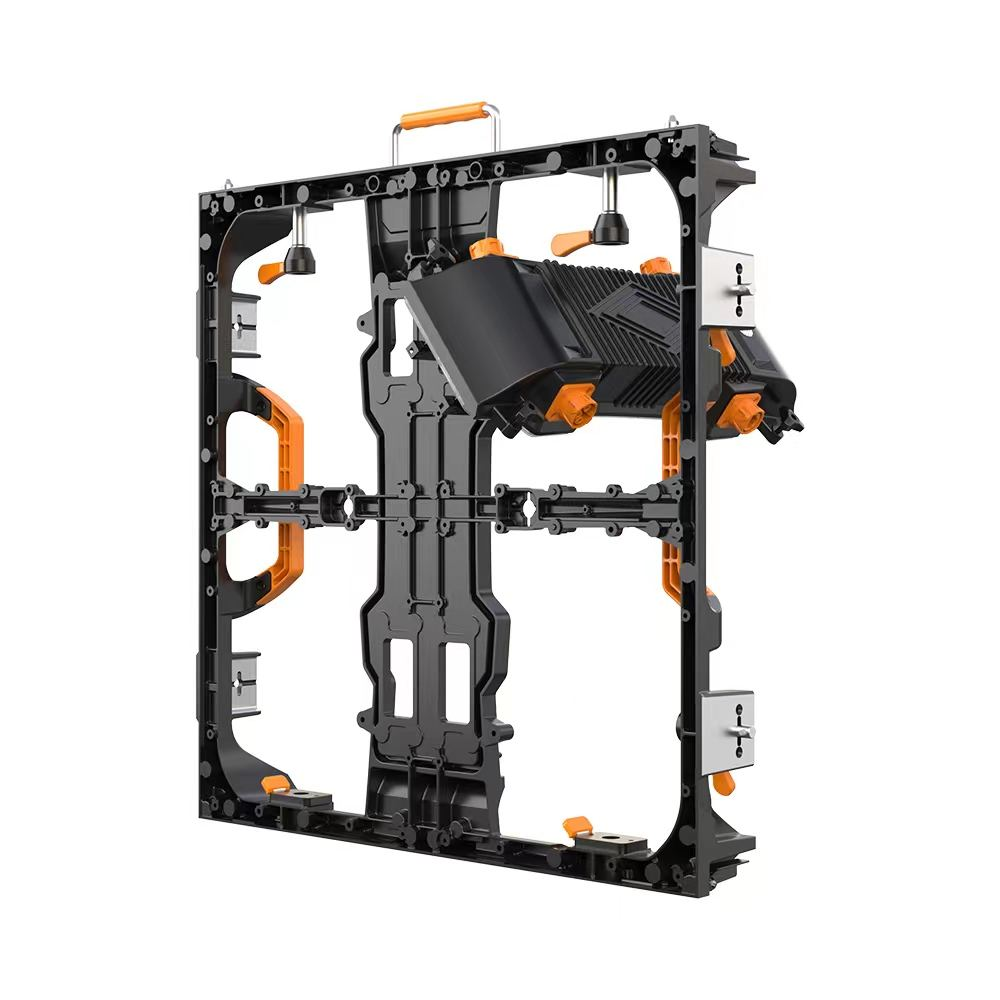
LED display EDID should be approved as part of the complete HDMI signal path, not treated as a setting that automatically matches the wall. Agree on a supported source output, confirm what capability information reaches the source, verify the processor’s actual input, and test the intended image after switching and restart. The wall’s pixel dimensions, the incoming HDMI resolution and the content file dimensions are separate items to record.
For buyers and integrators, the acceptance question is simple: can the approved source reliably return to the intended picture under normal operating conditions? This guide helps scope that test and its handover evidence. It is not a universal menu sequence, a promise that every player supports custom timings, or a substitute for the selected equipment’s instructions.
What does EDID tell the source?
EDID means Extended Display Identification Data. It describes capabilities presented to a video source so that the source can choose an appropriate output. Extron’s technical explanation of EDID describes this capability exchange, including resolution information, and explains how communication problems can produce an absent image or an unexpected output mode. That document is a foundational explanation, not a current specification for every HDMI device.
In an LED installation, identify the device presenting that information to the source. The connection may be direct to a processor, or it may pass through a switcher, adapter or extender. Ask the integrator which device controls the advertised profile and how that profile is handled through the installed route. Do not assume the computer is reading the LED wall’s physical pixel count.
Use the same inquiry for permanent indoor LED display installations with a dedicated player and for rooms that accept visiting laptops. A fixed source offers a narrower test scope; a guest connection needs an agreed support policy rather than an unqualified promise that every laptop will work.
Keep three resolutions in the project record
Start with the installed LED canvas: its actual horizontal and vertical pixel dimensions and cabinet mapping. Then record the source’s active HDMI output, including frame rate. Finally, record the authored content dimensions and how that content is placed within the presentation. Do not copy one number into all three fields without checking the intended design.
For example, a wall with a nonstandard aspect ratio may use content placed within an approved standard input frame, followed by a defined crop or scaling operation. Alternatively, a compatible system may use a custom input timing. These are different workflows, not interchangeable quality claims. Require the supplier to explain which one is proposed and what the audience should see.
As a documented equipment example, NovaStar’s VX1000 user manual, version 1.1.0, separates screen configuration, layer cropping and input-resolution settings. Its HDMI/DVI input settings include standard and custom EDID modes; the same input-resolution setting is not supported for SDI. Confirm the current manual, firmware and supported limits for the actual selected controller rather than transferring this example to another model.
The video processor selection checklist covers the wider procurement decision. Here, the narrower requirement is to retain the intended relationship between source frame, processing area and LED canvas, so a later technician can reproduce it.
Inspect the route that will actually be installed
Write the signal route in connection order, with model and port identifiers. Include every dock, converter, switcher, distribution device, extender and patch connection that will remain in service. A successful bench test without these items establishes only that shorter configuration, not acceptance of the final route.
Ask how capability information is passed, stored or selected at each relevant device. If an intermediary offers an EDID profile, record the selected profile and why it fits the downstream equipment. Keep a copy of an exported profile where the equipment supports it. A profile name such as “4K” is not a complete description of the approved resolution, frame rate and other signal parameters.
If one source feeds an LED wall and an additional monitor, include both destinations in the review. Ask whether the design uses a common compatible input mode or independently processed outputs. Have the integrator demonstrate the intended arrangement with both destinations connected; do not treat a test with the monitoring output removed as proof of the full configuration.
Label the connection points in the installation record and retain accessible service space. This helps the operator identify the approved source port without unplugging adjacent equipment. Electrical work and access to protected equipment remain the responsibility of qualified personnel under the equipment and site procedures.
Establish a known-good HDMI input before adding complexity
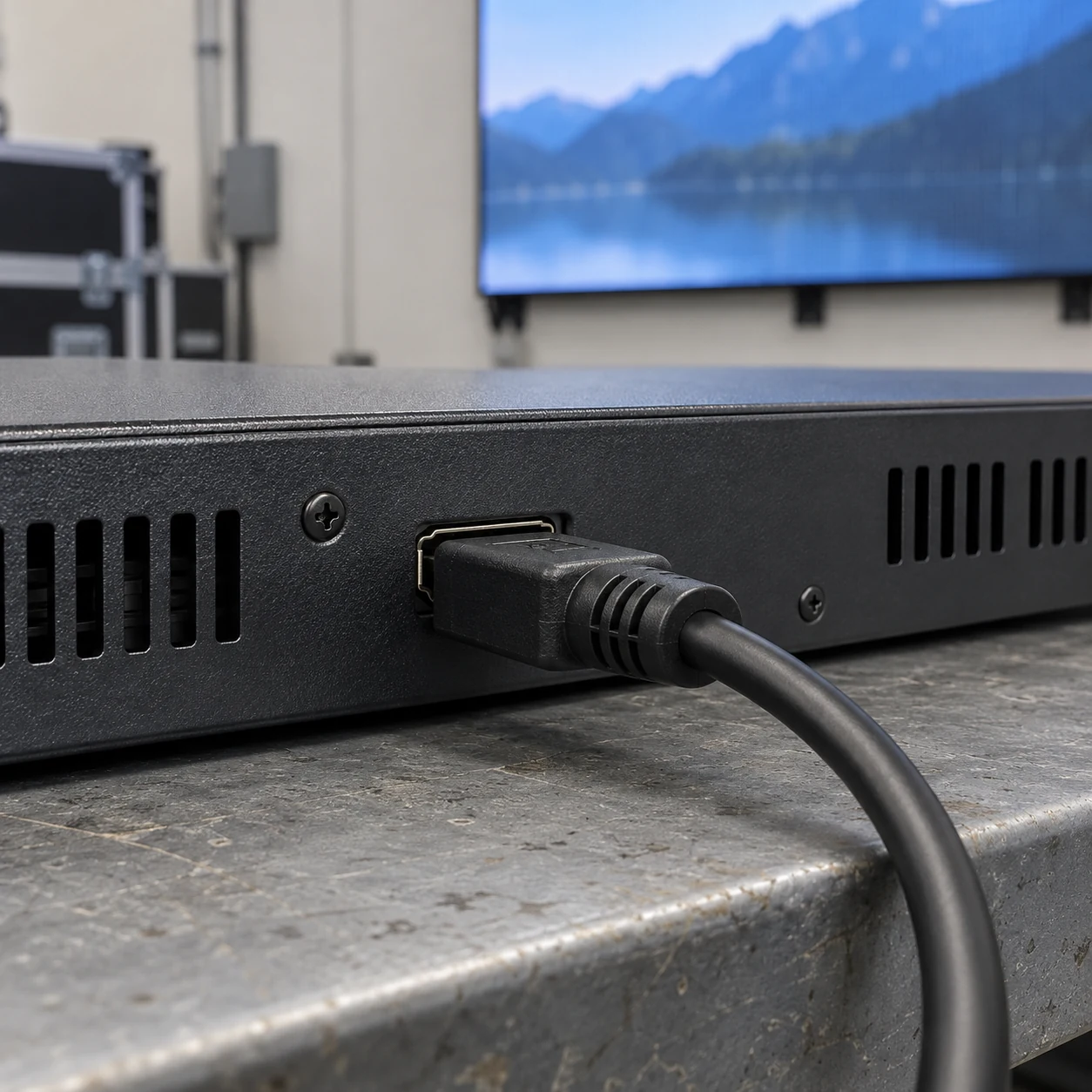
Begin with a manufacturer-supported source and input mode that the integrator has selected for the actual devices. Record the source’s active output and the processor’s detected input rather than relying only on the presentation’s requested setting. Capture the relevant status information with its model, port and timestamp.
Where suitable, the integrator can compare an approved direct connection with the complete installed route. This is a controlled diagnostic comparison, not permission to bypass protective functions or leave temporary wiring in production. If the direct route passes but the installed route does not, investigate the added items one at a time and retain the original configuration record.
Do not change the EDID profile, source mode, adapter and processor crop simultaneously. Agree on one change, observe the result, and either retain it with a reason or restore the previous state. That process makes the finding usable for support instead of producing a working image with an unknown combination of settings.
Keep content decoding separate from signal acceptance. The video format approval guide addresses whether a media file plays correctly on the chosen player. A valid file does not establish that the player’s HDMI output is the approved mode, and a detected HDMI input does not establish correct playback of every file.
Confirm the picture, not only a detected input
Use an agreed test image containing a visible outer border, a central circle, fine detail and neutral tones, then representative project content. Inspect the complete wall for the intended framing and proportions. Ask the integrator to distinguish a source-output issue from crop, scaling, layer placement or cabinet mapping before making adjustments.
A processor reporting a valid input is useful evidence, but it is only one part of acceptance. Record whether all required edges are visible, whether the circle retains its shape, and whether important text is readable at the intended viewing positions. Avoid making the test depend on a single photograph that hides cropped edges or unreadable detail.
If an approved custom timing is proposed, include the actual source hardware, software and adapters in the demonstration. Request a supported alternative and its documented image treatment if the expected guest source cannot provide that timing. “Custom resolution supported” should be tied to a tested configuration rather than used as an unlimited compatibility promise.
Know what forcing a resolution does and does not prove
BrightSign’s current presentation-settings documentation describes a Force Resolution option that outputs the selected resolution even when the connected display reports it as unsupported. With that option unchecked, the documented behavior is to attempt the target resolution and fall back if unsupported. The documentation also notes that relevant fields move to the Screens tab for Series 5 players using BrightSign Author 1.7.11 and later.
This is a product-specific setting, not a universal repair. If the integrator proposes a forced output, ask for written confirmation that the complete route accepts that mode and retain the successful test evidence. An advertised capability mismatch still needs explanation. Do not enable an override simply to hide an unresolved incompatibility or assume that it creates support for an otherwise unsupported format.
Content protection needs a separate check when protected material is part of the authorized use. Extron’s EDID 101H 4K setup guide distinguishes detected video from HDCP authentication in its status indicators. Ask the equipment supplier to verify the required protected-content compatibility across the actual route. A passing unprotected test image is not that verification; do not use unauthorized protection-removal workarounds.
Test the transitions that matter to the operator
Agree on realistic operating transitions before handover. Include the approved daily startup sequence, a source restart, normal input changes and any planned laptop sleep-and-wake behavior. Where reconnecting a user-accessible input is part of normal operation, include it under the manufacturer’s connection instructions. Do not introduce uncontrolled unplugging during a live campaign.
For each transition, record whether the expected input and picture return without intervention. If intervention is needed, document exactly what the operator is permitted to do and when support must take over. Define any acceptable recovery interval with the project team; this article does not prescribe one universal timeout or claim measured recovery results.
Use the existing startup and shutdown plan to keep the operating sequence consistent. A one-time successful connection is not the same as a repeatable morning startup. Equally, a required procedure should not be replaced with a different sequence just because it happened to work during one test.
Use the following matrix as a blank acceptance framework. Complete it with the selected equipment and project criteria; the rows are not reported KSS test results.
On smaller screens, swipe horizontally to view all columns.
| Acceptance item | Evidence to retain | Approval question |
|---|---|---|
| HDMI source output | Active resolution, frame rate, source and port | Does the actual output match the approved mode? |
| Advertised capabilities | Profile reference and device presenting it | Is the profile appropriate for the complete route? |
| Processor input and layout | Detected input, crop and canvas configuration | Does the intended image fill the agreed area correctly? |
| Normal operating transitions | Restart and switching observations | Does the picture return within the agreed criteria? |
| Exceptions and recovery | Supported alternatives and operator instructions | Are unresolved routes excluded from acceptance? |
Hand over a reproducible baseline
Keep the approved connection record, applicable firmware/software versions, source mode, EDID profile reference, processor configuration and test observations together. Include the exact adapters accepted for guest use. A replacement dock or player should be assessed against this baseline rather than assumed equivalent because its connector fits.
Record who may change the profile and who owns retesting. If a controller, extender, source driver or firmware changes, ask the integrator which checks must be repeated before the affected route returns to normal service. Preserve the last approved configuration so support can distinguish an installation fault from a recent configuration change.
When an image fails later, follow the black-screen recovery plan and provide the recorded route and last known-good state. “HDMI problem” is too broad a fault report. State whether the source detects a destination, whether the processor detects an input, which transition preceded the failure, and whether the issue affects one approved source or all of them.
Questions buyers ask about EDID commissioning
Must the HDMI resolution equal the LED wall’s pixel dimensions?
Not automatically. Define how the source frame is mapped to the installed canvas. A supported standard mode with controlled crop or scaling may fit the project; a custom mode needs confirmation across the actual source and signal route. Approve the visible result as well as the numerical settings.
Will an EDID emulator fix every blank-screen issue?
No blanket remedy should be promised. First determine whether the failure concerns capability exchange, the actual source output, another route component, content protection or downstream processing. Ask the integrator to justify any added device and test the completed route. Adding hardware is not evidence that the original cause has been resolved.
Can a guest laptop connection be guaranteed for all laptops?
Define a supported connection policy instead. List accepted output modes, adapters, operating arrangements and tested representative sources. Provide a usable fallback and support process for an unverified device. Keep unfamiliar hardware outside the acceptance claim until its route and output have been checked.
Include signal acceptance in the project scope
LED display EDID commissioning is complete when the source, advertised capabilities, detected input and intended image agree under the approved operating conditions. Retain that baseline and its exceptions so the operator can restore service without guessing which setting made the screen work.
For a KSS Display discussion, provide the application, wall dimensions and pixel canvas, source/player models, intended HDMI output, full signal route, guest-device requirements, content-protection needs, operating transitions and installation schedule. Send your LED display project requirements so the display and integration scope can be reviewed together. Confirm final compatibility and acceptance procedures with the selected equipment suppliers and responsible integrator.