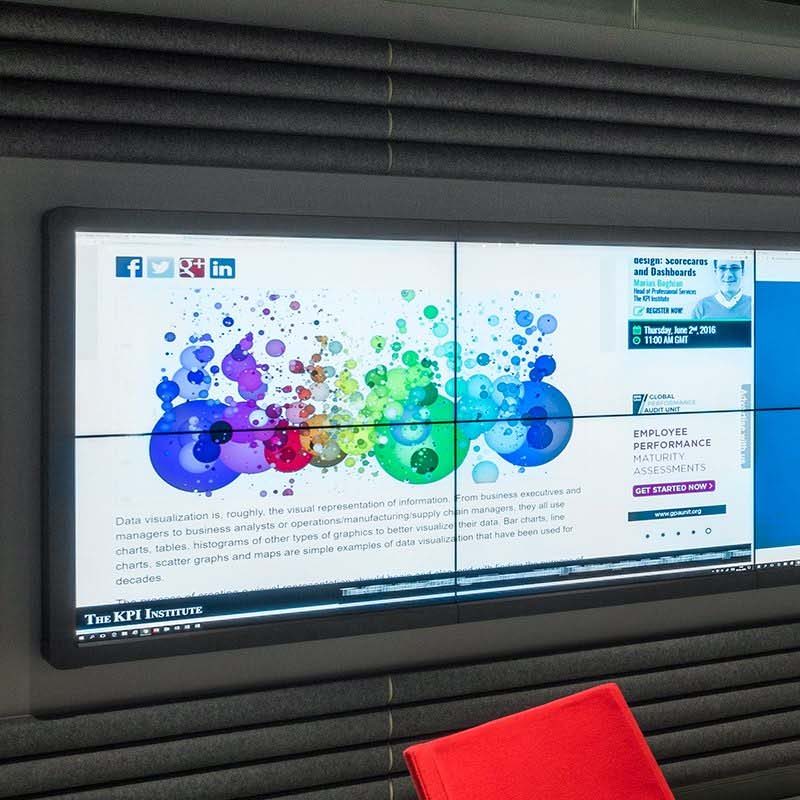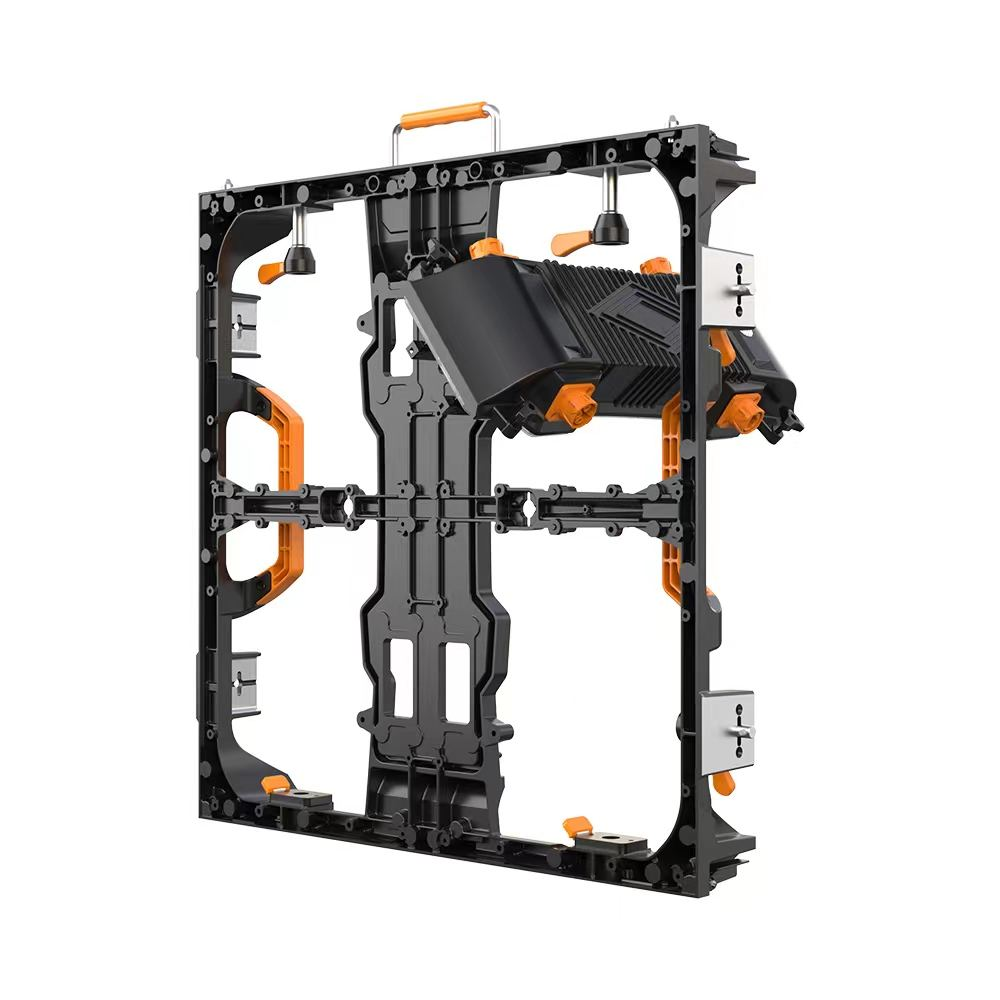
A fine pitch LED touchscreen combines an LED image surface with a touch-sensing system, a computer and interactive software. A fine pitch LED wall is not automatically touch-enabled. If your meeting room, classroom or exhibit needs writing and multi-user interaction, verify the complete input-to-image workflow before selecting the display.
This guide focuses on interactive system selection and acceptance. For the relationship between screen dimensions, pitch and native resolution, use the separate small pixel pitch LED sizing guide.
Define what users will actually do
Prepare a short demonstration using the intended application: handwriting over a presentation, selecting small controls, moving a map or collaborating with multiple users. Identify who operates the screen and which areas they can comfortably reach. A wall that looks impressive from the back of the room can still be awkward for someone writing near its upper edge.
If the task is simply to present information, an ordinary LED wall with a separate control device may be sufficient. If a standard-size interactive LCD meets the room’s needs, compare that complete system as well. A larger modular LED surface adds design flexibility, but also requires careful coordination of touch, protection, processing and maintenance.
Match the interactive workflow to the room
In a meeting room or classroom, demonstrate the actual presentation, annotation and conferencing software, including switching between a visitor’s laptop and the room computer. In a control room, decide whether operators need to touch the large wall or can work more comfortably from a separate workstation. Check which controls are reachable before specifying a touch surface across the entire wall.
For retail and museum installations, test the intended visitor journey, simultaneous users, accessible control positions and recovery to the start screen after inactivity. Include the protective surface and approved cleaning method in the demonstration. These application checks supplement the touch accuracy and source-routing tests below; a generic claim of sunlight readability or long LED life does not establish suitability for a particular room.
Specify the display and touch system separately
On smaller screens, swipe horizontally to view all columns.
| System element | What the proposal should identify |
|---|---|
| LED image surface | Active dimensions, exact pitch, native pixel matrix and service method |
| Touch sensing | Sensor type, usable area, supported inputs and simultaneous touch points |
| Protective surface | Approved construction, cleaning method and effect on reflections and writing feel |
| Computer and connections | Operating system, video path, touch return connection and any required drivers |
| Software | Application compatibility, licensing and behavior with multiple users or sources |
Touch capability is a documented product feature rather than a consequence of pixel pitch. For example, Planar’s UltraRes L specifications list native multi-point touch separately from the LED image specifications. That manufacturer example does not establish the features of a different supplier’s configuration.
When reviewing the KSSdisplay interactive LED category, ask which exact configuration includes touch hardware, which accessories are optional, and who is responsible for the host computer and application.
Test touch at the edges and in the real application
Do more than open a whiteboard and draw one line in the center. Write slowly and quickly, draw diagonals across the usable area, select small controls near the corners and move objects between users. Check whether the contact location and visible ink remain aligned when a user changes position.
Specify any need for a stylus, gloves, palm rejection or simultaneous writing. Support for many touch points does not guarantee that the application handles every input as intended. If an infrared or optical sensing arrangement is proposed, include its installed lighting conditions and possible obstructions in the demonstration.
Agree measurable acceptance criteria with the integrator before purchase. Record observed delays through the complete system instead of treating an LED refresh-rate number as touch latency. The computer, application, touch processing and video chain can all affect the writing experience.
Verify source switching and touch routing
A video connection and a touch return connection perform different jobs. Confirm how the selected computer receives touch input and what happens when the displayed source changes. In a multi-window layout, test which source receives a tap and whether the mapping changes with the window layout.
Run the proposed laptop, dock, extender and conferencing equipment together. Test restart, sleep and reconnection, then document the working resolutions and scaling settings. The HDMI and EDID commissioning guide covers video-path checks that complement the touch tests.
Approve the surface, lighting and maintenance method
Use a display assembly approved by its supplier for repeated touch. Do not assume that an exposed LED module or a protective coating is suitable for finger pressure, stylus use or the planned cleaning products. Ask how a damaged module, protective layer or touch sensor can be replaced and whether recalibration is needed afterward.
Evaluate text, reflections and skin contact under the room’s normal lighting and operating brightness. Brightness should support comfortable close use. An indoor fine pitch display is not automatically weatherproof or suitable for direct sunlight.
Prepare an interactive display acceptance brief
Include screen dimensions, closest user position, mounting height, application and operating system, number of simultaneous users, required input tools and the source-switching arrangement. Add your sample files and the specific writing, edge-selection, restart and service tests that must pass.
The conference room display solution provides a starting point for room planning. To check an interactive configuration, send KSSdisplay the room layout and application brief and request a proposal that separates display hardware, touch integration and software responsibilities.